
Find your way around the main window
The four parts of the main window, the toolbar, the tray icon, and how to give a session its own window.
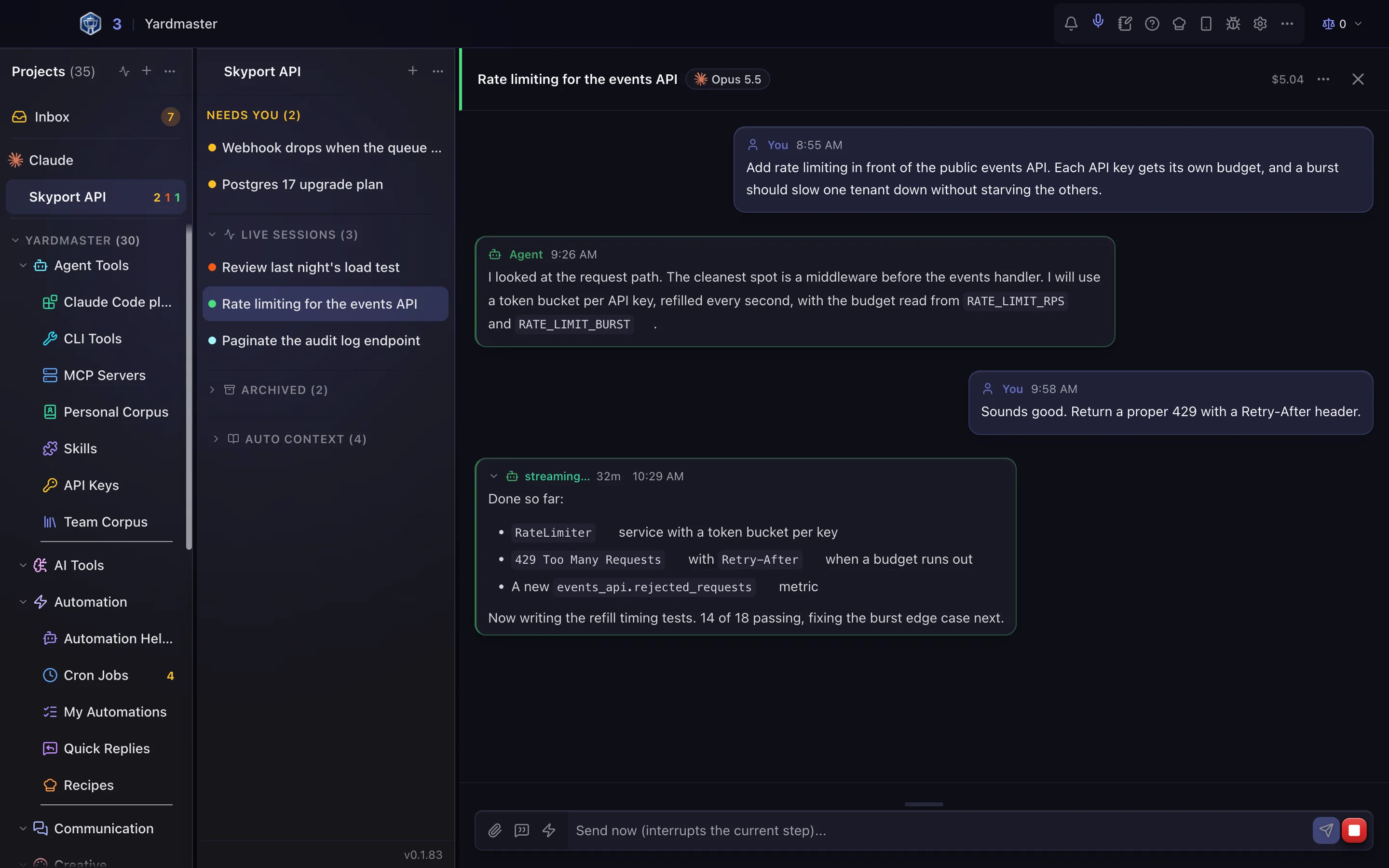
The main window shows your projects, their sessions and the conversation you are in, side by side. Everything else is one click away in the toolbar at the top.
The four parts of the window#
Projects (far left): the Inbox at the top, then your projects. A project is a folder on your computer that your agents work in.
Sessions (next to it): the conversations in the project you picked. The colored dot on each one shows whether it is working, waiting for you or done.
The conversation (the big area): what the agent is doing, and the box where you reply. Chat with an agent covers it.
The toolbar (along the top): buttons for notifications, help, settings and more.
Use the toolbar#
Out of the box, the toolbar shows Notifications, Scratchpad, Help & Docs, Recipes, Mobile Access, Feedback and Settings. Everything else is under More toolbar items (the three dots).
To keep a button you use often in view, right-click it in the More toolbar items menu and choose Pin to toolbar. To take one off, right-click it and choose Unpin from toolbar.
Tours, in the same menu, starts a guided tour of a part of the app. More short tours, such as Answer an approval, Find a setting, Schedule work, Stats and Connect GitHub, are in Settings > Setup Wizards: click Take Tour next to the one you want.
Give a session its own window#
A session can have a window of its own, for example to keep it on a second screen.
Open the session.
Click the session's menu (the three dots above the conversation).
Click Pop Out to Window.
The main window then shows Bring window to front and Reattach here for that session. Close the separate window, or click Reattach here, to put the session back. Yardmaster remembers where you left each session's window.
The tray icon#
Yardmaster also has an icon near your computer's clock (the system tray on Windows, the menu bar on a Mac). On Windows, click it to bring the window back. On a Mac, clicking it opens its menu: choose Show Yardmaster there. The menu also has:
Hard Reload: reloads the window if it looks stuck. Your sessions keep running.
Restart Yardmaster…: closes and reopens the app, after asking you first.
Quit: closes Yardmaster.
Related
- Designed pages from a description (Share Kit)With Share Kit, an agent describes a report, dashboard or deck and Yardmaster builds a checked, readable page in one house style.
- Re-imagine a Share with AIAsk AI to rethink how a Kit Share looks, its look, layout and headings, without changing a single fact, within a daily limit you set.
- Arrange the window and text sizeHide or resize the side columns, change the text size, zoom a pop-out window, and know what happens to your sessions when you close Yardmaster.